
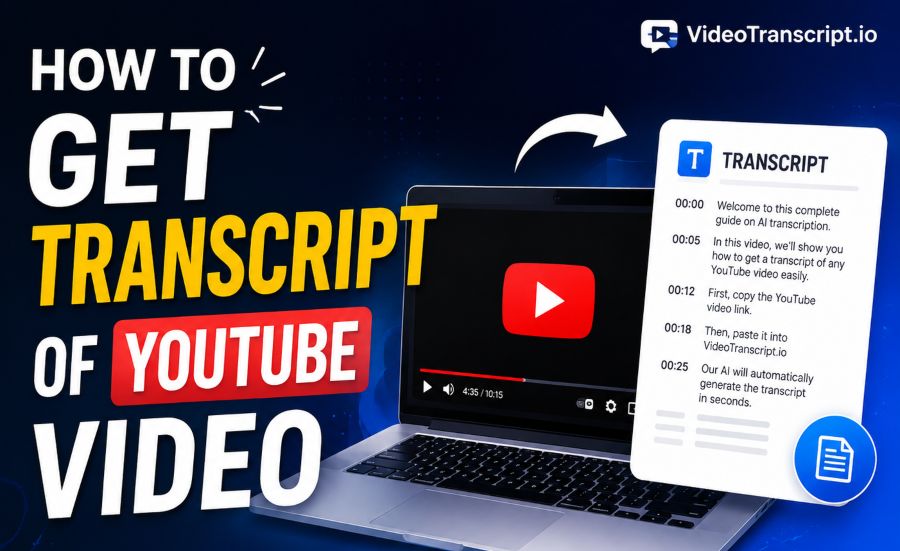
If you are wondering how to get transcript of youtube video content, the process is usually simple once you know where to look. YouTube includes a built-in transcript feature on many videos, and it can help you read spoken content without replaying the video again and again.
A transcript is useful for more than convenience. It helps with note-taking, research, quoting key lines, creating captions, and quickly scanning long videos for specific topics. For students, marketers, creators, and business users, transcripts save time and improve accuracy.
The exact steps can vary depending on the device you use, whether captions are available, and whether the creator has enabled transcript-related features. Some videos display a full transcript directly, while others may only show captions or require a workaround.
Once you understand the available options, you can pull text from interviews, tutorials, webinars, podcasts, and educational clips much faster. The key is knowing when to use YouTube’s native tools and when to rely on outside solutions.
The easiest place to start is the video page itself. On desktop, many videos let you open the transcript from the description area or the menu near the title. Once opened, the transcript appears in a side panel with time stamps next to each spoken section.
That side panel is especially useful when you need to jump to a certain part of the video. Clicking a line in the transcript usually takes you to that moment, which makes reviewing long-form content far more efficient than dragging the play bar manually.
Not every video offers the same experience. If the creator has not enabled captions, or if YouTube has not generated automatic captions, the transcript option may not appear. In those cases, availability depends on the video settings and the spoken language.
On mobile devices, the transcript feature can be harder to find or may appear differently depending on the app version. If you do not see it in the app, opening the same video in a desktop browser often gives you better access to transcript controls.
You should also remember that automatic transcripts are not always perfect. Names, technical terms, accents, and background noise can reduce accuracy, so it is smart to review the text before using it in articles, reports, or published content.
What are the steps to view a YouTube transcript?
Open the video on YouTube
Start by visiting the YouTube video you want to review. Make sure the video is playable and has captions available, because the transcript feature usually depends on caption data being present in some form.
Check the video details area
On desktop, look below the video title or around the description and extra options. Many videos include a transcript command in the menu, and this is often the fastest route when you want the full spoken text.
Use the three-dot menu
If the transcript is not immediately visible, click the three-dot menu near the video details. YouTube often places transcript-related options there, especially when the page layout changes or hides features behind secondary controls.
Open the transcript panel
After selecting the transcript option, a panel should appear on the right side or below the video. This panel lists spoken lines in order, usually with time stamps that match the audio as the video plays.
Adjust or remove time stamps
Some transcript panels allow you to hide time stamps for cleaner reading and easier copying. This is useful if you want to paste the text into a document, summarize the material, or reuse it for internal notes.
Copy the transcript text
Once the transcript is visible, highlight the text and copy it into your preferred app or document. Depending on the formatting, you may need to clean up line breaks, time markers, or repeated phrases before using it elsewhere.
Try another device if needed
If you cannot find the transcript option, switch from mobile to desktop or use a different browser. Feature placement can vary, and many users find that transcript access is more reliable on the full desktop version of YouTube.
Why do people use video transcripts?
1. A transcript lets you scan a video quickly instead of replaying the same section multiple times.
2. It helps writers, students, and researchers quote spoken material more accurately.
3. It improves accessibility for people who prefer reading or cannot rely on audio alone.
4. It makes it easier to repurpose YouTube content into summaries, blog posts, or meeting notes.
5. It allows you to search for key phrases inside spoken content without guessing where they appear in the timeline.
Best ways to make transcripts more useful
- Clean formatting: Remove extra line breaks, speaker noise, and awkward caption splits so the text reads naturally.
- Keep time markers: Leave time stamps in place when you need to reference exact moments for editing, research, or fact-checking.
- Verify names: Double-check people, brands, and technical terms because automatic captions often miss uncommon words.
- Break into sections: Divide long transcripts into clear topic blocks to make them easier to review and reuse.
- Search for keywords: Use find tools in your browser or document editor to jump directly to important phrases.
- Summarize after copying: Turn the transcript into short notes or outlines so the main ideas stand out faster.
- Store source links: Save the original video URL with the transcript so you can return to the source when needed.
Where do transcripts fall short?
Automatic captions can be inaccurate
One of the biggest limits of YouTube transcripts is accuracy. Automatic speech recognition has improved, but it still struggles with heavy accents, overlapping voices, industry jargon, poor audio quality, and fast speech. If you are using a transcript for professional writing, academic work, or published content, you should compare it against the video before relying on every line. Even small errors can change the meaning of a quote or instruction.
Some videos do not offer transcripts
Not every upload includes a transcript option. If a video has no captions, restricted settings, unsupported language handling, or limited accessibility features, you may not see a transcript at all. This can be frustrating when you need text from a podcast, interview, or tutorial. In those cases, you may need to look for creator-provided captions, third-party transcription software, or manual note-taking instead of depending on YouTube alone.
Mobile access is not always convenient
Many users try to find transcripts in the YouTube mobile app and assume the feature is missing when they cannot locate it quickly. In reality, the layout often changes, and some controls are easier to access on desktop. If your goal is to copy, edit, and organize transcript text, a laptop or desktop browser usually provides a better workflow. It gives you more space, clearer menus, and faster copy-and-paste handling.
Formatting usually needs cleanup
Raw transcript text often comes with awkward line breaks, repeated fragments, and time stamps that interrupt reading. That means the transcript is useful as a source, but not always ready to publish or share as-is. If you plan to turn it into notes, an article, or a script, expect to spend a few minutes editing the text for flow, punctuation, and readability. This is especially true for long videos with fast dialogue.
Speaker identification may be missing
YouTube transcripts usually focus on spoken words, not on clearly labeling each speaker. In interviews, debates, webinars, and panel discussions, this can create confusion when multiple people talk. If you need a transcript for documentation or reporting, you may have to add speaker names manually while checking the video. That extra step can be important when the context depends on who said what.
Language support can vary
Transcript availability and quality depend heavily on the spoken language and how well YouTube processes it. Popular languages often receive better automatic caption support, while regional dialects or mixed-language videos may produce weaker results. If the transcript looks inconsistent, it may reflect limitations in recognition rather than missing content. In those situations, outside transcription tools or manual review can produce a more reliable final version.
Privacy and usage still matter
Even when a transcript is easy to copy, you should still use the content responsibly. A transcript does not automatically give permission to republish large sections, present someone else’s words out of context, or ignore copyright concerns. It is best used for study, internal reference, note-taking, analysis, and limited quotation. If you plan to publish material based on a transcript, make sure your use is accurate, fair, and properly attributed.
Learning how to get transcript of youtube video content can make video research much faster and more organized. Once you know where the transcript option appears, you can move from watching to scanning in a matter of seconds.
For most users, the built-in YouTube transcript feature is the best place to start. It is simple, free, and useful for studying, writing, and extracting key information from long videos.
Still, it is important to remember that transcripts are not always available or fully accurate. Reviewing the text against the audio is a smart habit, especially when precision matters.
When used well, transcripts turn YouTube from a passive viewing platform into a practical research tool. That makes them valuable for creators, students, professionals, and anyone working with spoken content.
FAQs About how to get transcript of youtube video
Can every YouTube video show a transcript?
No, not every video includes a transcript. The feature usually depends on whether captions are available, whether YouTube has generated them automatically, and how the video settings are configured.
How do I get a transcript on desktop?
Open the video in a desktop browser, look around the description or three-dot menu, and select the transcript option if it appears. The transcript will usually open in a panel beside or below the video.
Why can’t I find the transcript option on my phone?
The mobile app does not always display transcript controls clearly, and the layout can vary by version. If the option is missing, try opening the video on a desktop browser for better access.
Can I copy the transcript text from YouTube?
Yes, in many cases you can highlight the visible transcript and copy it into a document. You may need to remove time stamps and clean up formatting after pasting.
Are YouTube transcripts accurate?
They can be useful, but automatic transcripts are not always fully accurate. Background noise, accents, fast speech, and unusual vocabulary can all lead to mistakes.
Can I download a transcript directly from YouTube?
YouTube does not always provide a direct download button for transcripts in a clean file format. Most users copy the text manually or use external tools when they need a saved version.