
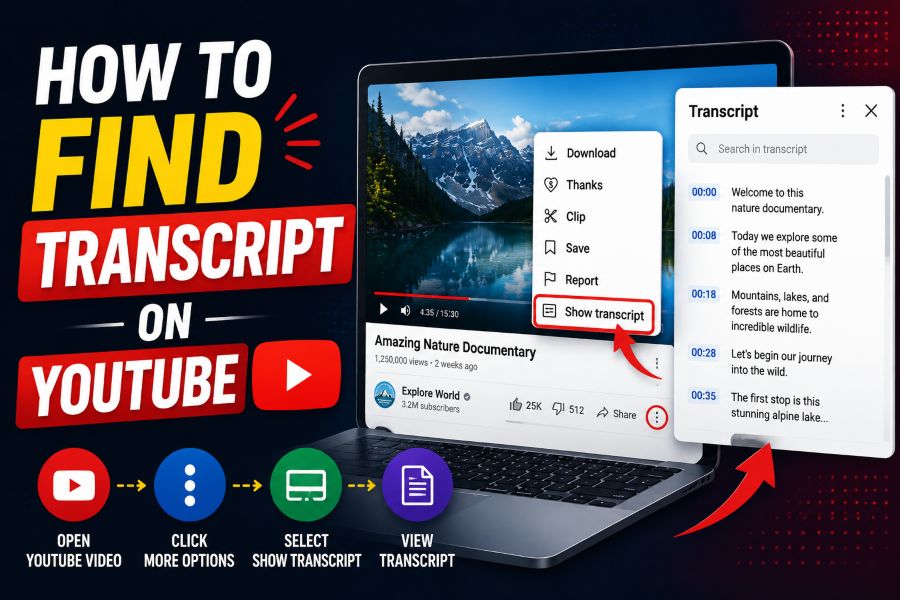
Learning how to find transcript on youtube is useful when you want to skim a video, quote a speaker, study a tutorial, or jump straight to the part that matters. YouTube includes a built-in transcript feature for many videos, but it is easy to miss because it is tucked inside the video description area.
A transcript is the written version of the spoken audio in a video. It usually appears with timestamps, so you can click a line and move directly to that moment in the video.
Not every video has a transcript. The feature depends on whether captions are available, either uploaded by the creator or generated automatically by YouTube.
Once you know where to look, finding the transcript usually takes only a few seconds on desktop or mobile.
Open the YouTube video you want to check and look below the player. The transcript option is usually found inside the expanded description, not in the video itself.
Click the description area or the more option to reveal the full details. Then scroll through the expanded description until you see the transcript section.
Select Show transcript to open the transcript panel. On desktop, it often appears beside the video; on smaller screens, it may appear lower on the page or in a drawer.
As the video plays, the transcript can follow along with the current spoken line. You can also click a timestamp or transcript line to jump to that part of the video.
If you do not see the option, the video may not have captions, the creator may have disabled certain features, or YouTube may not have generated automatic captions yet.
Where Is the YouTube Transcript?
Start With the Video Page
The transcript feature is tied to an individual video, so begin by opening the exact video you want to read. Use the regular YouTube website or app, then let the page load fully before looking for the transcript option.
Expand the Description
On many current YouTube layouts, the transcript button is located inside the expanded video description. Click the more option or expand the text beneath the title so the full description area becomes visible.
Look Near the Bottom
After expanding the description, scroll through any channel notes, links, chapters, hashtags, and credits. The Show transcript button is often placed near the lower part of this expanded section.
Open the Transcript Panel
Click Show transcript when it appears. YouTube will open a transcript panel with timestamped lines that match the spoken content of the video when captions are available.
Use Timestamps to Navigate
Each transcript line may include a timestamp. Selecting a line or time marker can move the video playback to that exact point, which makes transcripts helpful for long tutorials, interviews, lectures, and reviews.
Check Available Languages
Some videos include more than one caption language. If a language menu is available in the transcript panel, choose the version that best matches what you need, such as original captions, translated captions, or auto-generated captions.
Know When It Is Missing
If the transcript button is not visible, the most likely reason is that the video does not have captions. A transcript depends on caption data, so videos without captions usually cannot display the built-in transcript panel.
Quick Steps to Open a Transcript
1. Open the YouTube video you want to read and wait for the page to load completely.
2. Click the video description or the more option beneath the video title to expand the full description.
3. Scroll through the expanded description until you find the Show transcript option.
4. Select Show transcript to open the timestamped transcript panel for the video.
5. Click any transcript line if you want to jump directly to that moment in the video.
Why You Might Use a Transcript
- Faster skimming: A transcript lets you scan the main points of a video without watching every minute.
- Better research: You can search for names, phrases, claims, or topics that appear in the spoken content.
- Study support: Students can review lectures, tutorials, and explanations in written form while taking notes.
- Accessibility: Transcripts help viewers who prefer reading or who need a text version of the audio.
- Accurate quoting: A transcript makes it easier to capture a speaker’s wording, although important quotes should still be checked against the video.
- Easy navigation: Timestamped lines help you move to the exact moment where a topic is discussed.
- Content planning: Creators, marketers, and writers can use transcripts to analyze structure, keywords, and recurring themes.
Troubleshooting Transcript Problems
No Show Transcript Button
If the button does not appear, first confirm that captions are available on the video. Try selecting the captions icon in the player; if captions are missing, YouTube may not have transcript data to show.
Auto-Generated Text Looks Wrong
Automatic captions can mishear names, technical terms, accents, music, or overlapping speech. For professional work, compare the transcript with the video audio before relying on exact wording.
Transcript Opens in the Wrong Language
Some videos default to an auto-generated or translated caption track. Look for the language selector inside the transcript panel and choose the most accurate available language.
Mobile Layout Feels Different
On mobile, YouTube may place the transcript inside the expanded description drawer rather than beside the video. Tap the title or description area, scroll within the expanded panel, and look for Show transcript.
Embedded Videos May Not Show It
A YouTube video embedded on another website may not display the full transcript controls. Open the video directly on YouTube if you need the transcript panel.
Older Instructions May Be Outdated
YouTube changes its interface over time, so older guides may mention a three-dot menu under the player. If that path does not work, check the expanded description instead.
Copying May Need Cleanup
If you copy transcript text, it may include timestamps, line breaks, and repeated spacing. Paste it into a document editor and clean the formatting before using it for notes, summaries, or citations.
Finding a YouTube transcript is simple once you know where the feature lives. Open the video, expand the description, and choose Show transcript when captions are available.
The transcript panel is more than a reading aid. It helps you search a video, revisit key moments, follow along with complex topics, and move quickly through long content.
If the option is missing, the video probably lacks captions or the layout is hiding the control in a different place. Try the desktop site, check the description carefully, or confirm whether captions exist.
For most everyday uses, YouTube’s built-in transcript tool is the fastest and easiest place to start.
FAQs About how to find transcript on youtube
How do I find a transcript on YouTube?
Open the video, expand the description beneath the title, scroll through the full description, and click Show transcript if the option is available.
Why can’t I see the Show transcript button?
The video may not have captions, the transcript may not be available in your layout, or automatic captions may not have been generated for that video.
Can I find YouTube transcripts on mobile?
Yes, but the layout can vary. Open the video in the YouTube app or mobile browser, expand the description area, and look for the Show transcript option.
Are YouTube transcripts always accurate?
No. Creator-uploaded captions are usually more reliable, while auto-generated transcripts can contain errors, especially with names, technical words, accents, or unclear audio.
Can I copy a YouTube transcript?
In many desktop browsers, you can highlight transcript text and copy it, but you may need to remove timestamps and extra line breaks after pasting.
Do all YouTube videos have transcripts?
No. A transcript is only available when the video has caption data, either from the creator or from YouTube’s automatic caption system.
Can I search inside a YouTube transcript?
Some transcript panels include search functionality, and you can also use your browser’s find command on desktop to locate words that appear in the visible transcript text.