
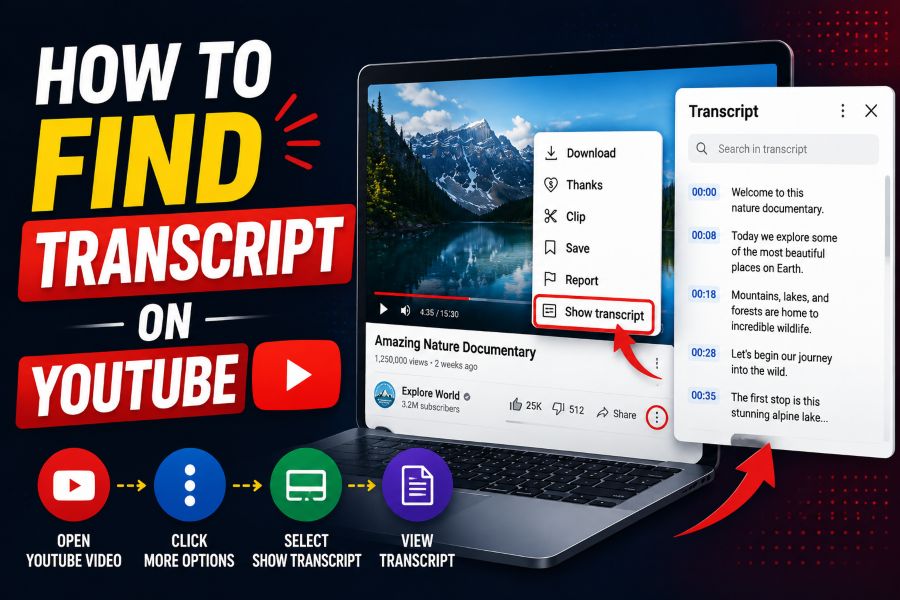
Learning how to view transcript on youtube can save time when you want to skim a video, quote a speaker, study a tutorial, or find one exact moment without rewatching everything.
YouTube transcripts turn spoken words into readable text, often with timestamps beside each line. When available, they let you jump directly to the part of the video where a word, phrase, or idea appears.
The feature is especially useful for students, researchers, writers, language learners, and anyone watching long interviews, lectures, podcasts, product demos, or how-to videos.
This guide explains where to find YouTube transcripts, how to use them on desktop and mobile, why the option may be missing, and how to get better results from the transcript panel.
A YouTube transcript is connected to a video’s captions. If a video has captions, YouTube may show a readable transcript that follows the video as it plays.
Some transcripts are created by the video owner, while others are generated automatically by YouTube. Manual transcripts are usually cleaner, but auto-generated text is still useful for quick searching.
The transcript panel is not always in the same place across devices, account layouts, or app versions. On desktop, it is commonly found near the video description area.
On supported videos, selecting a transcript line can move playback to that exact timestamp. This makes transcripts more than a reading aid; they also work like a navigation tool.
If you do not see a transcript option, the video may not have captions, the transcript may still be processing, or the creator may have limited caption availability.
How Do You Open a YouTube Transcript?
Start With the Video Page
Open the YouTube video you want to inspect and let the page load fully. Transcripts are tied to individual videos, so you must begin from the actual watch page rather than a search result, playlist preview, or embedded player.
Check the Description Area
On many desktop layouts, the transcript option appears in or near the expanded video description. Select the description area, look for a transcript prompt, and open it when available.
Use the More Options Menu
Some YouTube layouts place transcript access behind a more options menu near the video details. If you do not immediately see the transcript link, check nearby menus around the title, description, or action buttons.
Look for Show Transcript
When the feature is available, YouTube may display a button or link labeled Show transcript. Selecting it opens a panel with timestamped caption text beside or below the video, depending on screen size.
Select a Transcript Line
Once the transcript opens, choose any visible line of text to jump to that moment in the video. This is useful when you remember a phrase but not the exact timestamp where it was spoken.
Switch Languages if Offered
Some videos include multiple caption tracks. If a language menu appears in the transcript panel, choose the caption language that best matches what you need to read, search, or reference.
Search Within the Transcript
On some videos and layouts, the transcript panel includes a search field. Type a word or phrase to find matching moments quickly, especially in long videos such as lectures, webinars, and podcast episodes.
Best Ways to Use YouTube Transcripts
1. Use the transcript to scan a long video before deciding whether to watch it in full.
2. Click timestamped lines to move directly to the section that answers your question.
3. Search for specific names, tools, steps, dates, or phrases when the transcript panel supports search.
4. Compare the transcript with the audio before quoting anything, because automatic captions can contain mistakes.
5. Use transcripts as study notes, but rewrite important points in your own words for better understanding.
Why the Transcript Option May Be Missing
- No captions: The video may not have captions, and transcripts usually depend on caption availability.
- Processing delay: New uploads can take time before automatic captions and transcripts appear.
- Creator settings: The video owner may have uploaded, removed, edited, or restricted caption tracks.
- Unsupported layout: Some embedded players, mobile views, or older app versions may not show the same transcript controls.
- Language limits: A transcript may exist only for certain languages, especially when captions were manually added.
- Audio quality: Poor sound, background noise, music, or overlapping speakers can make automatic transcription unavailable or inaccurate.
- Account or app issue: A browser extension, cached page, app glitch, or outdated version can sometimes hide interface options temporarily.
Tips for Reading YouTube Transcripts Faster
Expand the Transcript Panel
If the transcript opens in a narrow panel, adjust your browser window or use desktop view when possible. A wider view makes timestamps, lines, and search results easier to scan without constant scrolling.
Use Browser Find
If YouTube does not show a transcript search box, your browser’s find command may still help locate visible words on the page. This works best after the transcript panel is already open and loaded.
Follow the Timestamps
Timestamps help you understand where each idea appears in the video. When taking notes, include the timestamp beside important points so you can return to the original context later.
Watch for Caption Errors
Automatic transcripts can misunderstand names, technical terms, accents, acronyms, and brand names. For serious work, replay the audio around important sections before relying on the wording.
Use Transcripts for Tutorials
Tutorial videos often contain step names, commands, settings, and warnings that are easier to follow in text. Reading the transcript alongside the video can help you avoid missing small but important instructions.
Check Chapters Separately
Some videos include chapters in addition to transcripts. Chapters are useful for broad navigation, while transcripts are better for finding exact words, details, and spoken explanations.
Respect Copyright and Context
A transcript can help you reference a video, but it does not automatically give permission to republish large portions of someone else’s content. Quote only what you need and credit the original video when appropriate.
Knowing how to find and use YouTube transcripts makes video content easier to search, study, and revisit. Instead of dragging the progress bar back and forth, you can scan text and jump straight to the right moment.
The basic process is simple: open the video, find the transcript option near the description or menu area, and use the timestamped lines to navigate. When search is available, it becomes even faster.
If the transcript is missing, check whether captions exist, try another device or browser, and remember that new videos may need processing time.
Used carefully, YouTube transcripts are a practical tool for learning, research, note-taking, accessibility, and faster viewing.
FAQs About how to view transcript on youtube
Can every YouTube video show a transcript?
No. A transcript usually appears only when the video has captions or subtitles available. If captions are missing, restricted, or still processing, the transcript option may not appear.
Where is the transcript button on YouTube?
On many desktop layouts, the transcript option appears near the expanded video description or in a nearby options menu. Look for a control labeled Show transcript.
Can I view a YouTube transcript on mobile?
Yes, some mobile app and mobile browser layouts support transcripts, but availability can vary. If you cannot find it in the app, try opening YouTube in a desktop browser view.
Why does my YouTube transcript have mistakes?
Many transcripts are automatically generated from speech recognition. Background noise, unclear speech, accents, technical terms, and multiple speakers can cause errors.
Can I search inside a YouTube transcript?
Some transcript panels include a search box. If YouTube does not show one, you may be able to use your browser’s find feature after opening the transcript.
Can I copy text from a YouTube transcript?
In many cases, you can select and copy transcript text, but you should verify accuracy and avoid republishing large portions of copyrighted content without permission.
Do transcripts work with translated subtitles?
If translated caption tracks are available, YouTube may let you switch languages in the transcript panel. Availability depends on the video’s caption options.